06:00
Start with the required checklist.
Open the Driver App and choose New Inspection. Complete the required quick pre-trip checklist before continuing to equipment selection.
Follow a typical driver’s shift. See how inspections, communication, and reporting fit into the work.
Company checklists guide the documentation. Required photos add context. Messages remain accessible throughout the shift. Save an unfinished inspection entry when interrupted, or use the dedicated accident and incident reporting workflow when needed.
The opening sequence has been checked against the Drive-linked Driver App demo. Screenshots retain its sample-data banner.
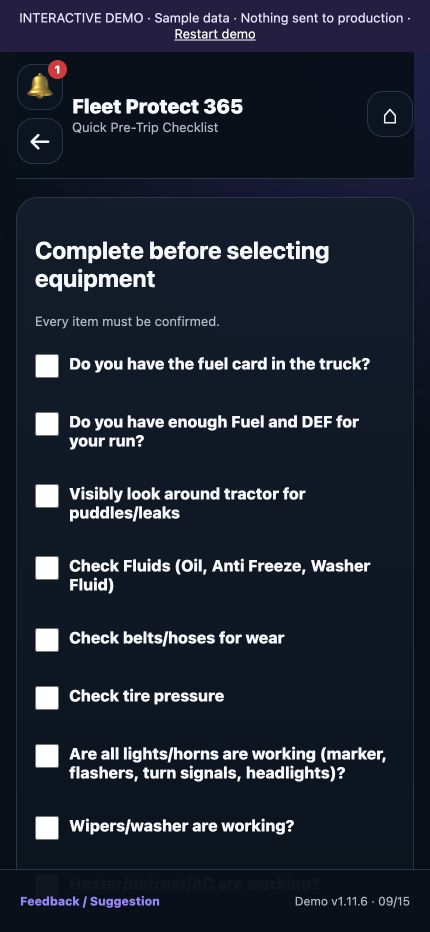
Open the Driver App and choose New Inspection. Complete the required quick pre-trip checklist before continuing to equipment selection.
Choose the equipment type, enter trip and equipment details, and continue to the required connection photos. The demo includes a separate Final Review step.
Document any concern and follow company procedures for contacting dispatch, maintenance, or the appropriate supervisor before operating the equipment.
Look up FedEx locations and review or acknowledge management messages. Open Truck documents, choose a truck number, and select a document title to view the file. Return to submitted inspections when a question comes up.
Record the post-trip results and any concerns needing attention. Include supporting photos where required and follow company reporting procedures.
Complete the End of Shift process so the inspection PDF goes to the driver and designated administrator.
A call from dispatch or another task can interrupt an inspection. Use Save Entry to save the unfinished entry, then choose Continue Saved Entry on the Driver App home screen when you’re ready to return.
On the inspection entry screen, tap Save Entry before stepping away. The app confirms when your entry has been saved.
Return to the Driver App on the same device and choose Continue Saved Entry to reopen your unfinished work.
Review your saved information, complete the remaining inspection steps, and submit when everything is ready.
The Driver App includes a dedicated Accident / Incident Report workflow to bring equipment information, scene photos, and the driver’s account together in one report.
Start with equipment information from the most recent inspection and confirm or update it for the incident. The report records when it was opened and captures GPS location with the device’s location permission.
Take photos or upload existing images to show the equipment, damage, and surrounding scene. Add the photos needed to support the report.
Record the location and direction of travel, the driver’s statement and sequence of events, and details about injuries, hazardous materials, or fuel spills. Include witness, tow-company, and police information when available.
The reporting workflow creates the report, emails it to the driver and active administrators, and archives it in Google Drive for follow-up.
Walk through the driver’s inspection and the record your administrator receives.
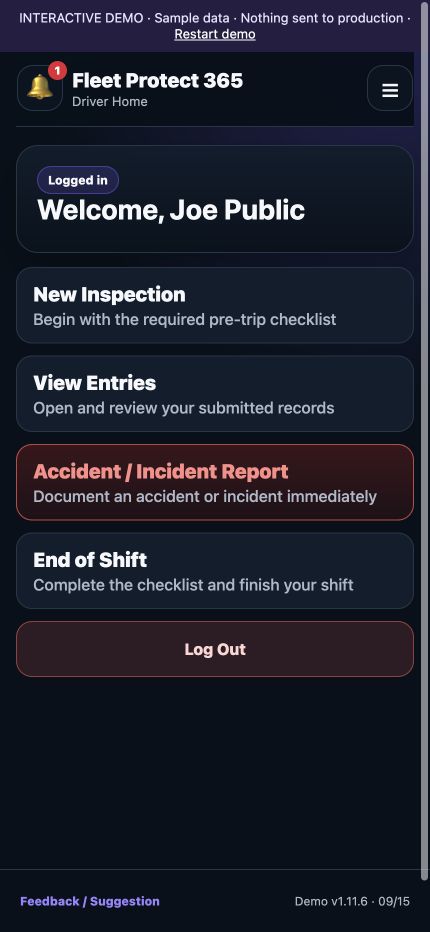
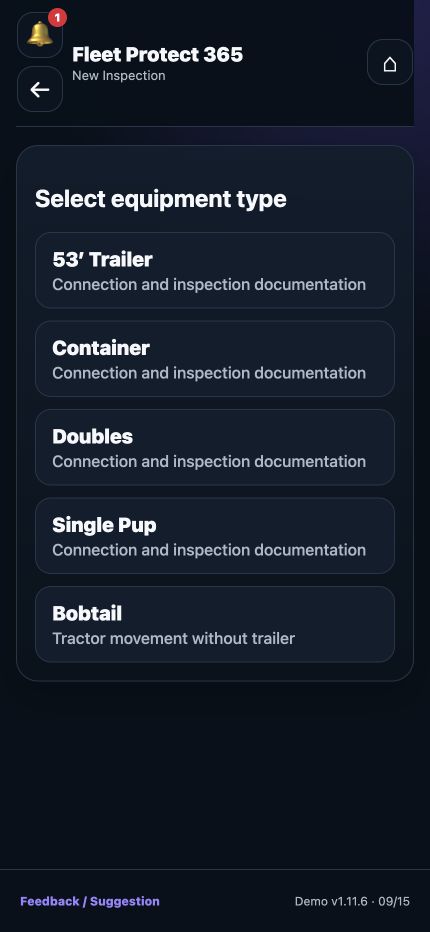
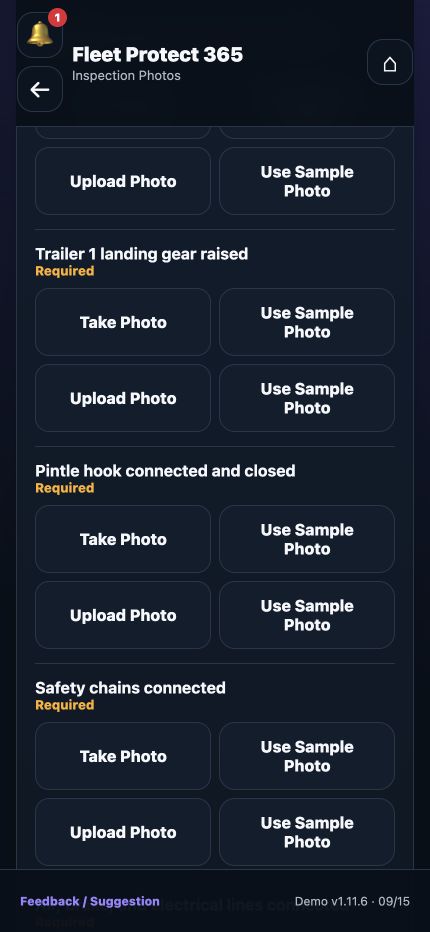
Large buttons and a guided sequence make the phone experience easier to follow.
Review management messages, acknowledge them, and reply from the app. Use your company’s contact procedures when a concern needs immediate attention.
Keep dispatch, maintenance, linehaul, safety, and after-hours contact information available through your company’s approved contact resources. Confirm those numbers during onboarding.
Use the Driver App login link and the account supplied by your administrator. Allow camera and location access when the relevant workflow requests them.
Open the Driver Demo to explore the interface. The demo is separate from your company’s live records.
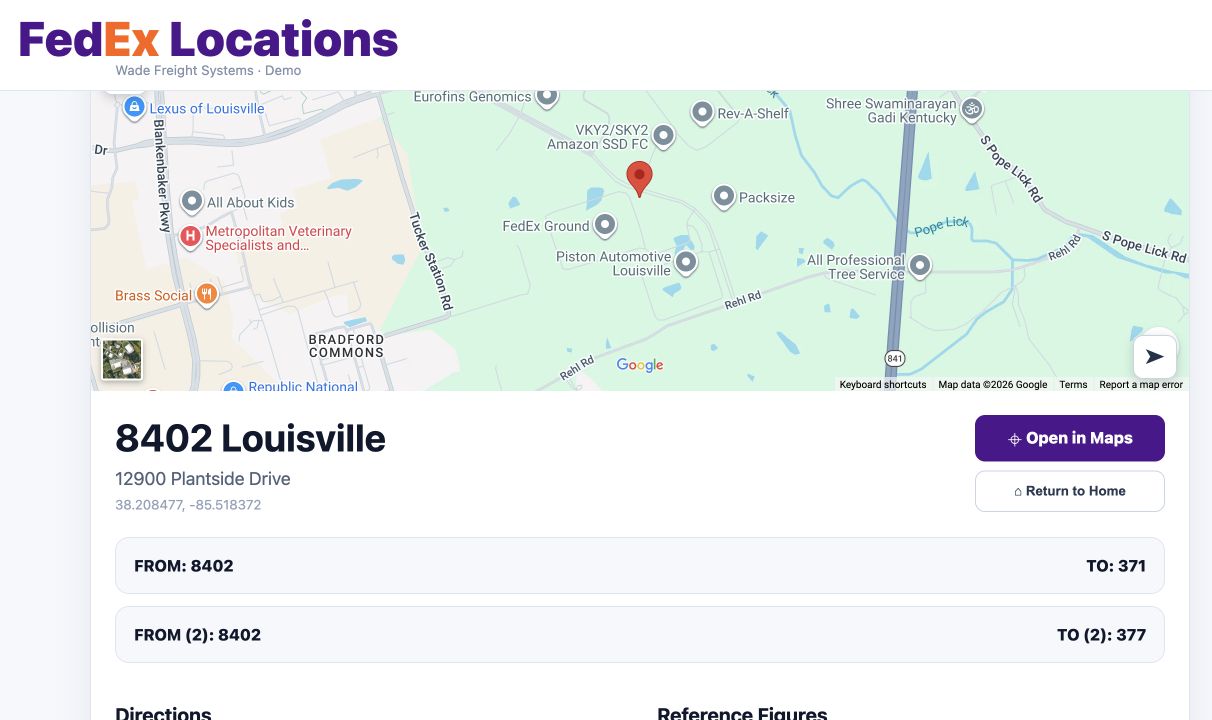
Search by code, review the map and address, and read saved directions, yard instructions, and notes.
Explore Location Information